

Spreadsheets often become business applications by accident.
A team starts with one file.
Then it adds formulas.
Then macros.
Then multiple tabs.
Then approvals by email.
Then five people need to edit it.
Then somebody creates “FINAL_v7_revised.xlsx.”
At that point, the problem is not Excel.
The process has outgrown a document.
When a Spreadsheet Becomes a System
A spreadsheet may still be the right tool when:
- One or two people use it.
- The process is flexible.
- Data volume is modest.
- Audit requirements are low.
- Integrations are minimal.
- The logic changes frequently.
A custom application becomes more attractive when the process needs:
- Multiple roles.
- Concurrent users.
- Controlled workflows.
- Validation.
- Permissions.
- Audit history.
- System integrations.
- Reliable reporting.
- Mobile access.
- Customer/vendor access.
Actiknow’s custom web application development work focuses on turning operational workflows into maintainable applications without rebuilding unnecessary complexity.
Do Not Rebuild the Spreadsheet Screen for Screen
The spreadsheet reflects how people adapted to tool limitations.
It is not necessarily the ideal product design.
For example:
- Color may represent status.
- Separate tabs may represent departments.
- Comments may represent approvals.
- Hidden columns may represent internal fields.
Before building, translate those workarounds into real application concepts.
Start With the Business Process
Document:
- Who starts the process?
- What information is captured?
- What happens next?
- Who approves?
- What are the exceptions?
- What marks completion?
- What reports are needed?
- Which systems are involved?
Do not begin with database tables.
Begin with user journeys.

Identify User Roles
Common roles include:
- Requester.
- Processor.
- Manager.
- Administrator.
- Auditor.
- Customer.
- Vendor.
For each role, define:
- What can they see?
- What can they create?
- What can they edit?
- What can they approve?
- What can they export?
- What can they administer?
This becomes the permission model.
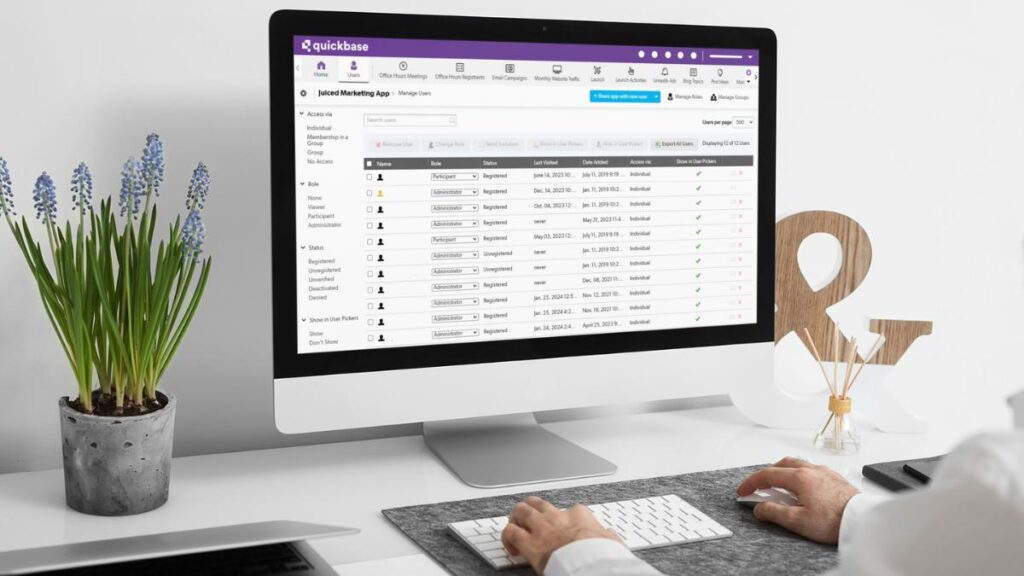
Create a Role-Permission Matrix
Do not rely on page hiding.
Define permissions explicitly.
Example:
1. Requester
Create own request, view own requests.
2. Processor
View assigned requests, update processing fields.
3. Manager
Approve assigned business unit.
4. Admin
Manage users and configuration.
5. Auditor
Read-only access to history.
The application should enforce permissions server-side.
Define Record Ownership
Spreadsheets often expose every row to everyone.
A web application can restrict records by:
- User.
- Team.
- Department.
- Region.
- Customer.
- Project.
- Tenant.
Define record scope separately from functional permissions.
A manager may have permission to approve but only for their region.
Replace Free-Form Cells With Validated Fields
Spreadsheets allow almost anything.
Applications should define:
- Data type.
- Required fields.
- Allowed values.
- Date rules.
- Numeric ranges.
- Dependencies.
- Uniqueness.
- Reference data.
Validation reduces downstream cleanup.
But avoid excessive validation that makes legitimate exceptions impossible.
Use controlled override paths.
Create Statuses
Most spreadsheet workflows already have implicit states.
Examples:
- New.
- In Review.
- Waiting for Customer.
- Approved.
- Rejected.
- Completed.
- Cancelled.
Define them explicitly.
Then define allowed transitions.
For example:
- New → Submitted.
- Submitted → Approved or Rejected.
- Approved → Completed.
This prevents accidental process jumps.
Use a State Machine for Complex Workflows
If status transitions have rules, model them.
For each transition define:
- Who can perform it.
- Required fields.
- Validation.
- Notification.
- Audit event.
- Downstream action.
This creates predictable behavior.
Separate Status From Assignment
A record can be:
Status: In Review.
Assigned to: Priya.
Do not encode both into one field such as “Priya Reviewing.”
Separate concepts make reporting and reassignment easier.
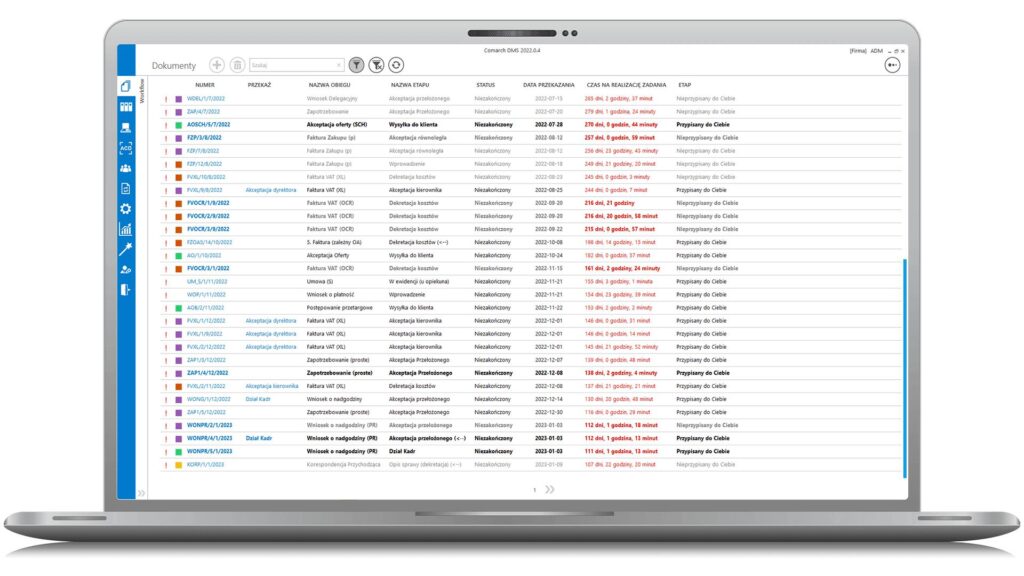
Build Approval as a Workflow
Instead of email:
- Route automatically.
- Show context.
- Record decision.
- Record approver.
- Record timestamp.
- Capture comments.
- Escalate overdue items.
- Support delegation.
- Trigger next step.
Approvals become auditable data.
Create Audit History
For important records, log:
- Who changed it.
- When.
- Field changed.
- Old value.
- New value.
- Status transition.
- Approval.
- System action.
Avoid logging secrets or sensitive values unnecessarily.
Audit history is one of the biggest improvements over uncontrolled spreadsheets.
Support Comments and Attachments Deliberately
If users currently email documents around, centralize them.
Define:
- Allowed file types.
- Size.
- Version behavior.
- Permissions.
- Retention.
- Malware/security controls.
Comments should be attached to the record, not scattered across inboxes.
Add Search and Filters
Users will expect to find records by:
- ID.
- Customer.
- Status.
- Owner.
- Date.
- Category.
- Keyword.
Saved filters can replace manually maintained spreadsheet tabs.
Design for operational use, not only data entry.
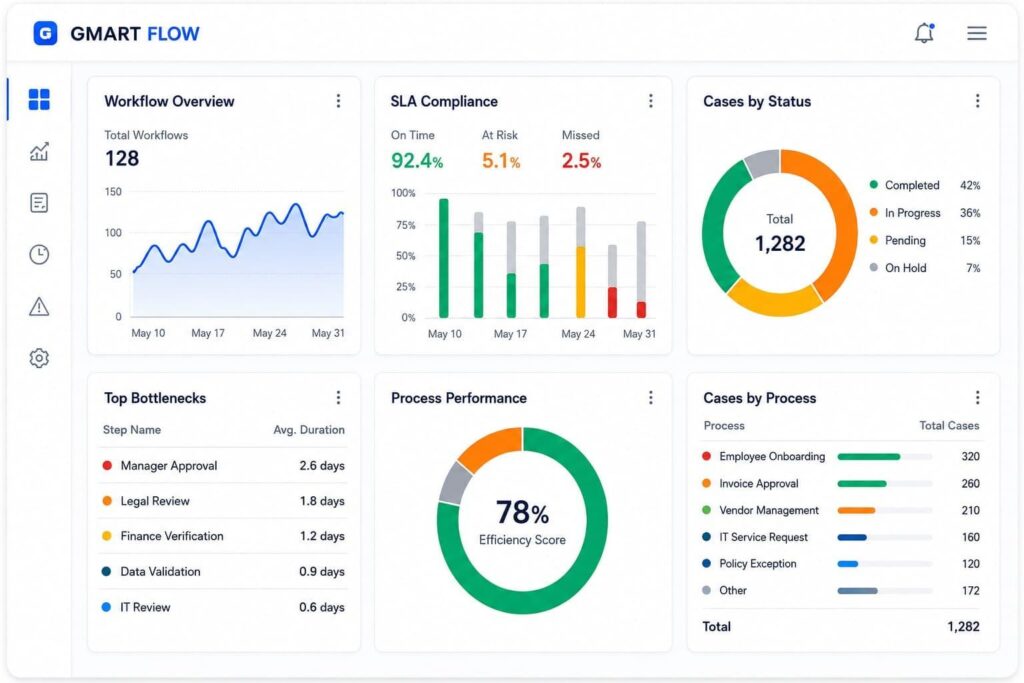
Use Dashboards for Work Queues
The application home page should answer:
What needs my attention?
Examples:
- My open items.
- Overdue approvals.
- Exceptions.
- Recently completed.
- SLA breaches.
This is more useful than opening a giant grid.
Keep a Table/Grid Where It Helps
Do not overcorrect.
Users may still need a spreadsheet-like table for:
- Bulk review.
- Sorting.
- Filtering.
- Export.
- Inline editing of appropriate fields.
A web application can preserve the useful grid experience while adding workflow and control.
Plan Bulk Actions
If users currently paste 500 rows at once, forcing them to open 500 forms will make the new system worse.
Consider:
- CSV import.
- Bulk edit.
- Bulk assign.
- Bulk approve where policy allows.
- Template download.
- Validation preview.
Understand high-volume workflows.
Identify Integrations
List systems the spreadsheet currently bridges manually.
Examples:
- CRM.
- ERP.
- Accounting.
- Email.
- Document storage.
- Payment platform.
- Data warehouse.
- Identity provider.
For each integration define:
- Direction.
- Frequency.
- System of record.
- Authentication.
- Failure handling.
- Reconciliation.
Do not connect everything in version one unless necessary.
Define the System of Record
If customer address exists in CRM and the new app, which system owns it?
Avoid two-way editing without rules.
For each major entity, define:
- Authoritative system.
- Read/write direction.
- Conflict behavior.
- Sync timing.
This prevents integration confusion.
Plan Notifications
Useful notifications include:
- Assignment.
- Approval request.
- Rejection.
- Overdue reminder.
- Completion.
- Exception.
Avoid sending an email for every field change.
Let users configure non-critical notifications where appropriate.
Use In-App Status
Email should not be the only way to know what is happening.
The application should show:
- Current status.
- Owner.
- Last update.
- Next action.
- History.
Users should not need to search inboxes.
Design Reporting Early
Define operational reports:
- Open work.
- Cycle time.
- SLA.
- Volume.
- Exceptions.
- Approvals.
- Completion.
Also define management metrics.
Do not recreate every spreadsheet chart automatically.
Ask which reports drive decisions.
Preserve Export Where Needed
Users may still need Excel or CSV for ad hoc analysis.
That is fine.
The goal is not to ban spreadsheets.
The goal is to stop using a shared file as the transactional system.
Provide controlled exports with permissions.
Plan Data Migration
Existing spreadsheet data may contain:
- Duplicates.
- Invalid dates.
- Free-form statuses.
- Missing IDs.
- Inconsistent names.
- Hidden rows.
- Formula results.
- Comments.
Before migration:
- Profile.
- Clean.
- Map.
- Validate.
- Archive.
Do not import every historical artifact without deciding whether it has business value.

Create Stable IDs
Spreadsheet row numbers are not reliable identifiers.
Create application record IDs.
Preserve legacy IDs where useful for reconciliation.
This helps support and integrations.
Migrate in Phases
A practical approach:
1. Phase 1
Core records, roles, workflow and search.
2. Phase 2
Key integrations and reporting.
3. Phase 3
Advanced automation, mobile features and optimization.
Avoid building every edge case before users touch the system.
Run Parallel Briefly
For critical processes, use a controlled transition.
Options:
- Read-only old spreadsheet.
- Limited parallel run.
- Pilot one team.
- Migrate active records only.
- Define the cutover date.
Do not allow two systems to remain editable indefinitely.
That creates reconciliation problems.
Train Around the Process
Training should explain:
- How work flows.
- Where to find assignments.
- How approvals work.
- What happens to exceptions.
- Who to contact.
Do not teach only which buttons to click.
Users need the new operating model.
Measure Adoption
Track:
- Active users.
- Records created.
- Cycle time.
- Exceptions.
- Manual exports.
- Support tickets.
- Steps still happening outside the system.
If users keep a shadow spreadsheet, find out why.
Do Not Overbuild Version One
Common overbuilding includes:
- Complex configurable workflow engine for one workflow.
- Dozens of admin settings.
- Custom report builder.
- Mobile app before mobile need is proven.
- AI features without a business case.
Build the core process cleanly.
Add flexibility where change is genuinely expected.
Security Basics
A business application should include:
- Authentication.
- Role-based access.
- Server-side authorization.
- Encryption.
- Secure secrets.
- Audit.
- Backups.
- Logging.
- Dependency updates.
- Vulnerability management.
Security should scale with the sensitivity of the data.
Define Support and Ownership
After launch, someone owns:
- User access.
- Configuration.
- Bug triage.
- Integrations.
- Data quality.
- Enhancements.
- Release schedule.
- Documentation.
A custom application is a product, even if it is internal.
A Migration Checklist
1. Before development:
- Current workflow documented.
- Roles defined.
- Statuses defined.
- Exceptions identified.
- Integrations inventoried.
- System-of-record rules defined.
- Reporting needs prioritized.
- Existing data profiled.
2. Before cutover:
- Permissions tested.
- Migration reconciled.
- Workflow tested.
- Audit history tested.
- Integrations tested.
- Users trained.
- Support owner named.
- Rollback/correction plan exists.
Frequently Asked Questions
When should a spreadsheet be replaced with custom software?
When the process needs multiple users, permissions, workflow, validation, auditability, integrations or reliable operational reporting that a shared file cannot manage safely.
Should we recreate the spreadsheet exactly?
Usually not. Preserve useful concepts but redesign workarounds such as color-coded status, tabs and email approvals into proper application workflows.
Can users still export to Excel?
Yes. Controlled exports are often useful. The objective is to move the operational source of truth into a governed application.
How much spreadsheet history should be migrated?
Only what the business needs. Clean and map active and relevant historical data rather than importing every legacy artifact blindly.
Should every integration be built in version one?
No. Prioritize integrations required for the core workflow and add others based on value and risk.
How do we stop users maintaining a second spreadsheet?
Make the application faster and more useful for the real workflow, provide necessary search/export/bulk features and address reasons users create shadow processes.
What is the biggest migration risk?
Rebuilding the spreadsheet rather than redesigning the underlying process, followed closely by poor data migration and unclear ownership.
Conclusion
Replacing a spreadsheet with custom software is not a file-conversion project.
It is a process redesign.
Define users, permissions, states, approvals, audit history, integrations and reporting.
Preserve useful spreadsheet behaviors such as grids and exports where they genuinely help.
Migrate data carefully.
Start with the core workflow.
Then improve the system based on actual usage.
If a spreadsheet has become a business-critical operational system, Actiknow can help map the workflow and build a maintainable web application around it. Discuss your custom application requirements with Actiknow.