
How to Automate Excel-to-Word Reporting Without Losing Auditability
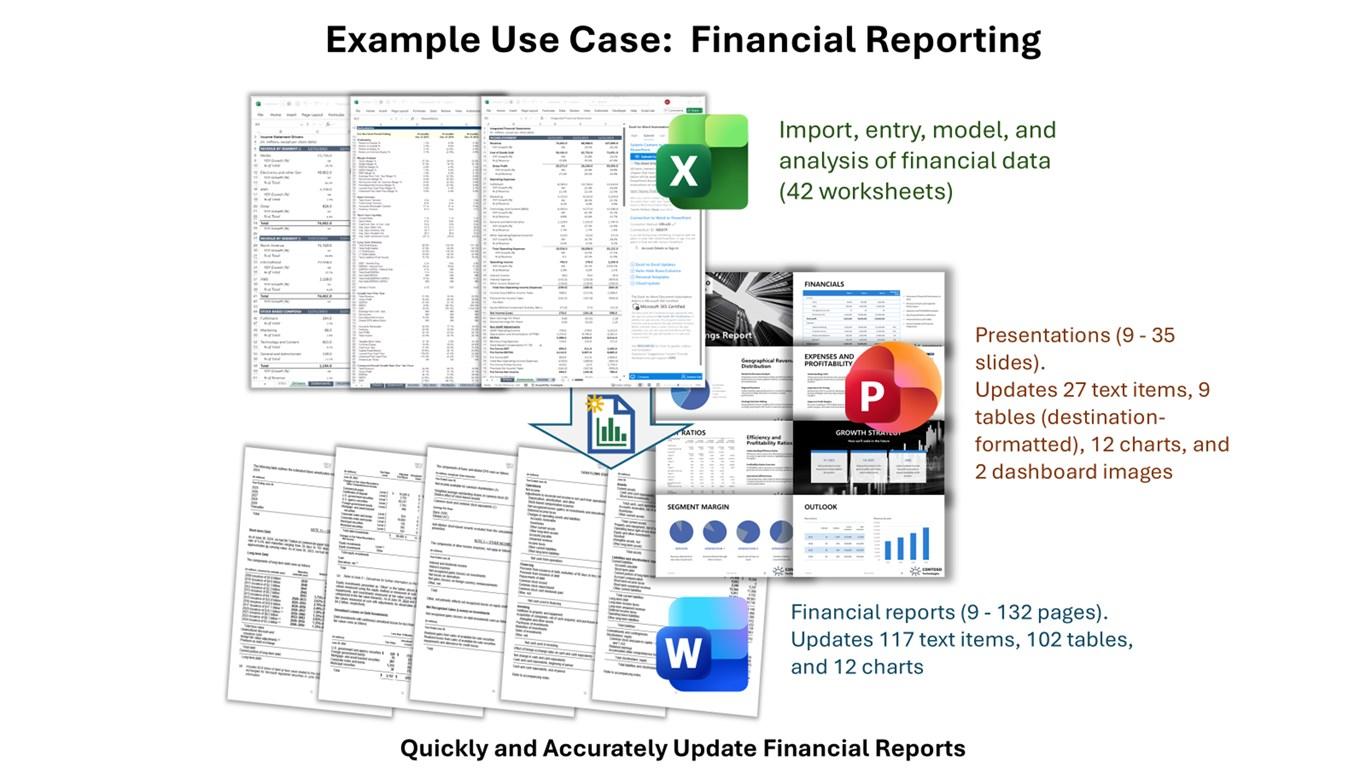
Many business reports begin in Excel and end in Word.
The spreadsheet contains structured data, calculations, findings or audit results. The Word document turns that information into a client-facing report, certificate, assessment, letter or formal deliverable.
When the process is manual, someone copies values from cells, updates tables, replaces names and dates, pastes narrative text, checks formatting, saves a new file and sends it for approval.
Automating that work can save significant time. But a poorly designed automation can also remove the very controls that make the report trustworthy.
The objective should not be “generate Word documents faster.”
It should be: produce the same approved report consistently from validated data, while retaining enough evidence to reconstruct who generated it, from which inputs, using which template, and what changed before release.
This guide explains how to design that process.
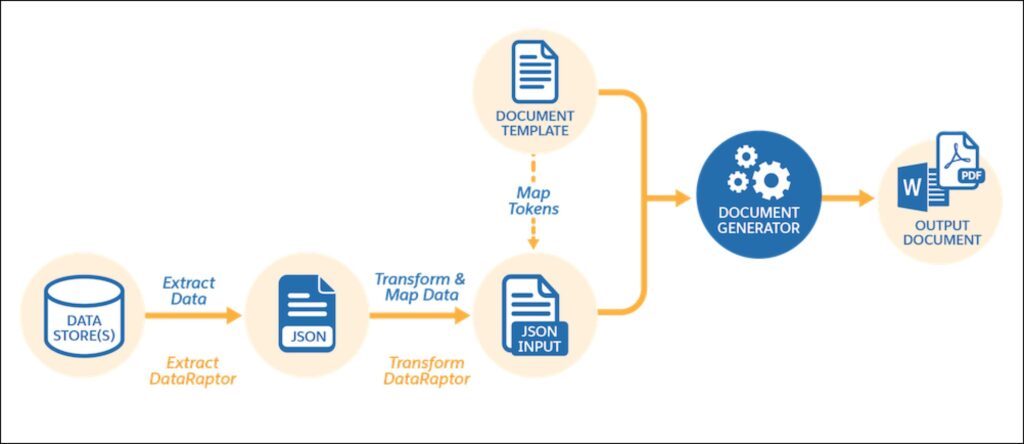
Start by Separating Data, Logic, Template and Output
A common mistake is to treat the Excel workbook as the entire application.
Instead, think of the reporting process as four layers.
1. Data
The values that belong in the report: client details, dates, findings, measurements, financial figures, questionnaire responses, audit results or other source information.
2. Logic
The rules that determine what appears in the report. Examples include calculated totals, pass/fail conditions, conditional paragraphs, risk categories, recommendations and section visibility.
3. Template
The approved Word structure, including headings, fixed language, tables, branding, headers, footers and placeholders.
4. Output
The generated report for a specific record, client, period or assessment.
Keeping these layers conceptually separate makes the automation easier to test and audit.
Actiknow’s business intelligence services include automation across Excel, Google Sheets, custom connectors and scripting. That combination is relevant because document automation usually sits between structured data handling and controlled output generation rather than being only a Word-formatting task.
Define the Report Record
Every generated document should correspond to a clearly identifiable reporting record.
For example:
- Audit ID.
- Inspection ID.
- Client and reporting period.
- Case ID.
- Project ID.
- Assessment ID.
- Invoice or transaction batch.
Do not rely on a person remembering which spreadsheet row produced which Word file.
Create a stable report ID and carry it through the entire process.
The report ID can appear in:
- The Excel source row.
- The generated filename.
- Document metadata or footer where appropriate.
- The generation log.
- Approval record.
- Final archive.
That single identifier becomes the thread connecting source data to final output.
Use a Controlled Input Table
If users type values anywhere in a workbook and the automation reads arbitrary cells, the process will become fragile.
Create a defined input structure.
Each field should have:
- A stable column or field name.
- A clear business definition.
- Expected data type.
- Validation rule.
- Required or optional status.
- Allowed values where applicable.
- Source or ownership.
For example, a reporting table might contain:
- Report_ID
- Client_Name
- Report_Date
- Reviewer
- Site_Address
- Finding_Count
- Risk_Level
- Summary
- Recommendation
- Approval_Status
The exact fields depend on the report. The principle is that the automation consumes a known schema rather than the visual layout of a spreadsheet.
Do Not Use Cell Position as Business Meaning
“Take the client name from C7” works until someone inserts a row.
Where possible, use structured Excel tables, named ranges or another explicit data structure.
If the process uses one row per report, the automation can locate a record by Report_ID and read fields by column name.
If the report uses related detail records, separate them into controlled tables linked by the report ID.
For example:
- Reports table.
- Findings table.
- Measurements table.
- Approvals table.
This resembles a small database and is much safer than scattering report data across formatted worksheet cells.
Validate Before Generation
The automation should not create a formal report merely because a button was clicked.
Run validation first.
1. Required fields
Confirm that all mandatory values are present.
2. Data types
Confirm that dates, numbers and identifiers are valid.
3. Allowed values
If Risk_Level must be Low, Medium or High, reject unexpected values rather than passing them into the document.
4. Cross-field rules
If a failed assessment requires a recommendation, confirm that the recommendation exists.
5. Reference integrity
If a finding references a category or standard, confirm that the reference is valid.
6. Duplicate protection
Confirm that the report ID is unique and determine whether an approved final version already exists.
7. Approval prerequisites
If the process requires data review before document generation, verify that the review has occurred.
Validation failures should produce a clear list of issues. They should not create a nearly complete document and leave the user to notice what is wrong.
Treat the Word Template as a Controlled Artifact
The template is part of the reporting system.
If anyone can edit it without control, the automation cannot guarantee consistent output.
Maintain a master template with a version identifier.
For example:
Report Template v1.4
Store the approved template in a controlled location. Limit edit access. Keep previous versions when historical reproducibility matters.
When a report is generated, record which template version was used.
This allows the organization to answer an important audit question later:
“Why does the report generated in March look different from the one generated in September?”
Use Explicit Placeholders
Avoid automation that searches for ordinary words such as “Name” or “Date” and replaces them.
Use deliberate placeholders or document controls.
Conceptually:
- {{CLIENT_NAME}}
- {{REPORT_DATE}}
- {{SUMMARY}}
- {{RISK_LEVEL}}
- {{RECOMMENDATION}}
The implementation can use Word content controls, bookmarks, template fields or another reliable mechanism depending on the technology selected.
The important point is that placeholders are unique, machine-readable and documented.
For each placeholder, define:
- Source field.
- Formatting rule.
- Whether it is required.
- Whether it contains plain text, rich text, a table or an image.
- What happens when the value is empty.
This mapping becomes part of the technical specification.
Keep Calculations Out of the Word Template
Word should usually present the result, not calculate the business logic.
If a score, risk classification or total is derived from input data, calculate it in the controlled data or logic layer.
Then pass the final value to Word.
This reduces the chance that two parts of the document calculate the same metric differently.
It also makes testing easier because the business rule can be verified independently of document formatting.
Handle Conditional Content Deliberately
Many reports contain sections that appear only under certain conditions.
For example:
- Show a remediation section only when issues are found.
- Include a high-risk warning only when Risk_Level is High.
- Include an appendix only when supporting evidence exists.
Use explicit conditional rules.
Document each rule in a specification:
- Condition.
- Section affected.
- Expected result.
- Fallback behavior.
Do not hide complex business logic inside dozens of unlabelled macros or template tricks.
Generate Repeating Tables From Structured Data
A report may contain a variable number of findings, transactions, assets or observations.
Do not create a template with 50 blank rows and hope the report never exceeds them.
Use a repeating structure.
For example, the Findings table might contain one row per finding linked to Report_ID.
The generator retrieves all findings for the selected report and builds the corresponding Word table dynamically.
The same principle applies to:
- Audit observations.
- Invoice lines.
- Inspection results.
- Project milestones.
- Survey responses.
- Assets.
- Recommendations.
Dynamic generation should preserve the approved table formatting while allowing the number of rows to vary.
Preserve Source Evidence
A generated report should not become the only record of what happened.
Retain the source data used for generation according to the organization’s retention requirements.
For higher-control workflows, create an immutable or versioned input snapshot at generation time.
The snapshot can include:
- Report ID.
- Input fields.
- Calculated values.
- Detail records.
- Source file or workbook version.
- Generation timestamp.
- Template version.
- Generator version.
- User who initiated generation.
This makes the report reproducible even if the live Excel workbook changes later.
Actiknow’s article on replacing manual Excel reporting with automated data pipelines emphasizes building controls before removing the manual process. The same principle applies here: automation should make validation and traceability stronger, not merely remove copy-and-paste.
Create a Generation Log
Every generation attempt should create a log record.
Useful fields include:
- Report ID.
- Generated filename.
- Generation timestamp.
- Generated by.
- Input version or snapshot ID.
- Template version.
- Automation version.
- Validation result.
- Generation result.
- Output location.
- Checksum or file identifier where useful.
- Approval status.
- Error message if generation failed.
The log should include failed attempts as well as successful ones.
This gives operations a history rather than only a folder full of documents.
Separate Draft Generation From Final Approval
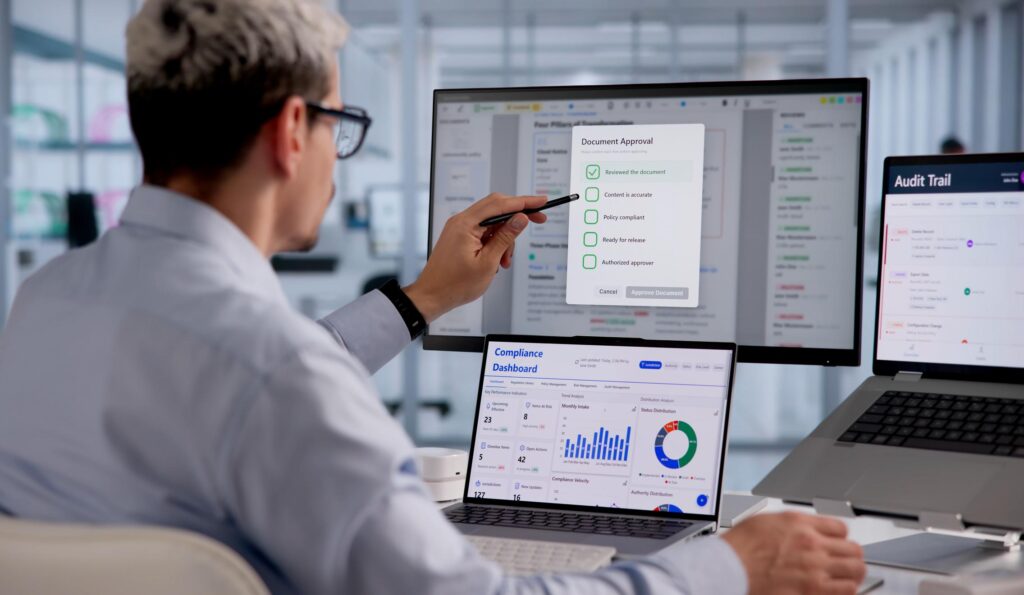
Automated generation does not mean automated approval.
A strong workflow often has at least two states.
1. Draft
The system has produced a document from validated data.
2. Approved
An authorized person has reviewed the output and released it as final.
The reviewer may need to confirm:
- Numbers.
- Narrative.
- Exceptions.
- Formatting.
- Supporting evidence.
- Client-specific language.
- Signatures.
Do not allow a generated draft to be mistaken for the final report.
Use clear filenames, metadata, status fields or watermarks as appropriate.
Record Human Changes After Generation
One of the hardest audit problems occurs when a Word document is generated correctly and then edited manually.
Sometimes manual editing is legitimate. A reviewer may refine narrative, add context or correct an exceptional case.
The process should decide whether post-generation editing is allowed.
If it is not allowed, the source data should be corrected and the document regenerated.
If it is allowed, record the fact that the generated draft was manually modified.
For stronger control, store:
- Original generated draft.
- Edited version.
- Editor.
- Edit timestamp.
- Approval record.
- Final version.
Word’s document history or a controlled document repository can help, but the business workflow still needs to define what constitutes the official final version.
Version the Automation Too
Template versioning is not enough.
The code that generates the report can change.
A new release might alter number formatting, conditional logic, table generation or field mapping.
Record an automation version with each generated document.
For example:
Generator v2.3.1
Then keep release notes describing what changed.
This is particularly important when the same input and template could produce different output after a code change.
Make Re-Generation Rules Explicit
What happens if a user clicks Generate twice?
Possible policies include:
- Overwrite the draft until approval.
- Create a new draft version every time.
- Prevent regeneration after approval.
- Require an explicit amendment workflow after approval.
Choose the policy based on the report’s significance.
For audit-sensitive documents, silently overwriting a previous final output is usually a poor design.
A simple version sequence might be:
- RPT-1042-DRAFT-01
- RPT-1042-DRAFT-02
- RPT-1042-FINAL-01
If an approved report later needs correction, create an amendment or superseding version rather than erasing history.
Use Deterministic Filenames
Filenames should help humans and systems identify documents.
A useful pattern may include:
- Report ID.
- Client or entity.
- Reporting date.
- Version.
- Status.
For example:
RPT-1042_Acme_2026-09-30_FINAL_v1.docx
Avoid relying only on a client name and “final,” which eventually produces files such as:
- Final.docx
- Final2.docx
- Final_latest.docx
- Final_revised_actual.docx
The filename should complement the formal generation log rather than replace it.
Control Where Documents Are Saved
Do not let every user choose an arbitrary destination.
Define a controlled output location such as:
- SharePoint.
- OneDrive.
- Google Drive.
- A document management system.
- A secure network location.
- A custom application repository.
The location should support the required access controls, retention and versioning.
The automation can create a consistent folder structure based on client, year, report type or another business dimension.
Use Permissions Appropriate to the Report
The source workbook, template, generated drafts and final documents may need different permissions.
For example:
- Operations can edit source data.
- Only template administrators can edit the master Word template.
- Reviewers can approve drafts.
- Final documents are read-only to most users.
- Administrators can access generation logs.
Apply least privilege. Document automation should not make confidential reports broadly accessible simply because generation is automated.
Build Exception Handling Into the User Experience
A button that says “Something went wrong” is not enough.
If generation fails, tell the user what can be corrected.
Examples:
- Client name is missing.
- Report date is invalid.
- Finding 7 has no category.
- Template version could not be loaded.
- Output folder is unavailable.
- The report is already approved and cannot be overwritten.
The user should know whether to correct data, retry later or contact support.
Technical details can still be stored in logs for developers.
Avoid Silent Partial Documents
If a required section cannot be generated, fail the process rather than quietly creating an incomplete formal report.
This is particularly important when the missing content is not visually obvious.
For example, if the report requires a table of audit findings and the query fails, the generator should not produce a document with an empty findings section unless “no findings” has been explicitly validated.
Distinguish “zero records” from “failed to retrieve records.”
That single distinction prevents dangerous false completeness.
Use Reconciliation Checks
After generation, perform automated checks where practical.
Examples include:
- Expected number of findings equals generated table rows.
- Required placeholders no longer exist in the final document.
- Report ID appears correctly.
- Totals in the report match calculated source totals.
- Required sections are present.
- Page or document generation completed successfully.
- Output file exists and is readable.
These checks do not replace human review, but they catch mechanical failures before the reviewer sees the document.
Consider PDF as the Final Distribution Format
Word is useful for templating and controlled review, but an approved report may be distributed as PDF to reduce accidental editing.
A common workflow is:
- Validate data.
- Generate Word draft.
- Review.
- Approve.
- Create final PDF.
- Archive the approved Word version and PDF where required.
- Distribute the PDF.
Whether this is appropriate depends on the document and business process, but the distinction between editable working document and released artifact is useful.
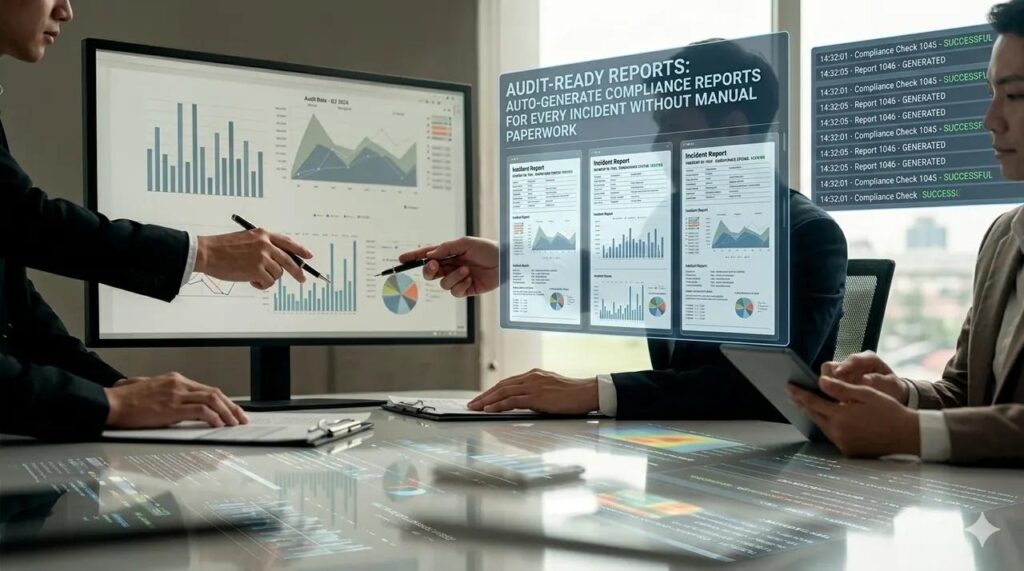
Digital Signatures and Approvals
If a report requires a signature, determine what the signature means.
A pasted image of a signature is different from an approval record or cryptographic digital signature.
Possible approaches include:
- Recorded approval inside the reporting application.
- Approval workflow in SharePoint or another document platform.
- Electronic-signature service.
- Digital certificate-based signing.
- Manual signature with controlled scan or upload.
Choose the method based on legal, contractual and audit requirements.
Do not add signature complexity merely because automation makes it technically possible.
Architecture Options
There are several reasonable ways to implement Excel-to-Word automation.
1. VBA
Useful when the workflow is entirely desktop-based and the organization already relies on Excel and Word.
Advantages include direct Office integration and a low infrastructure requirement.
Risks include local-machine dependencies, macro security, deployment and maintainability if the solution becomes large.
2. Office Scripts and Cloud Automation
Useful where Microsoft 365 cloud workflows and supported automation services fit the process.
This can reduce dependence on one user’s desktop, although Word document generation requirements should be checked carefully against the available services and connectors.
3. Power Automate
Can orchestrate file movement, approvals and supported document-generation steps, particularly in a Microsoft 365 environment.
Complex formatting or specialized document logic may still require additional components.
4. Custom Application or Script
A custom service can read structured Excel data, apply validation and business rules, generate documents, store audit records and expose a controlled user interface.
This becomes attractive when the workflow is business-critical, multi-user, high-volume or requires sophisticated governance.
Actiknow’s custom solutions offering includes automation and system integration, while its custom web application development services cover databases, integrations, testing, deployment and ongoing support. Those capabilities become relevant when a workbook-based utility evolves into a shared operational application.
Choose the Smallest Architecture That Meets the Control Requirement
Not every Excel-to-Word process needs a web application.
A monthly internal report generated by one trained analyst may be handled well with a controlled workbook and script.
A regulated, client-facing process generating thousands of documents across many users may justify a centralized application with a database, permissions and workflow controls.
Evaluate:
- Number of users.
- Documents per month.
- Business criticality.
- Sensitivity.
- Template complexity.
- Approval requirements.
- Integration needs.
- Audit requirements.
- Support model.
- Expected lifespan.
The right architecture is the simplest one that can reliably satisfy those requirements.
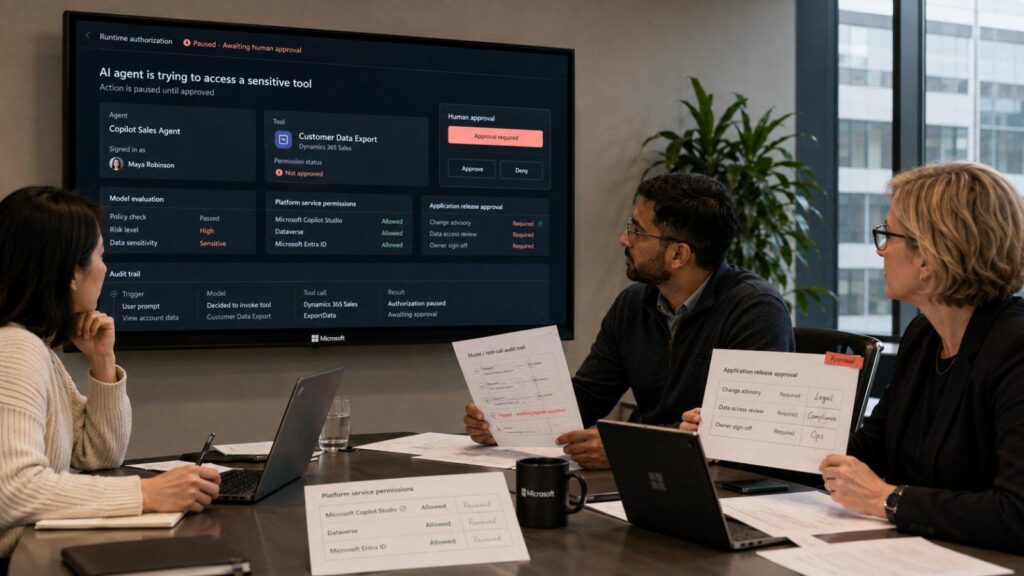
A Practical End-to-End Workflow
A controlled automated process might work like this.
- User selects a Report ID.
- System retrieves the corresponding Excel record and detail rows.
- Validation rules run.
- Validation errors are shown and generation stops if necessary.
- A snapshot of the approved input is stored.
- The current approved Word template is loaded.
- Placeholders are populated.
- Repeating tables and conditional sections are generated.
- Automated reconciliation checks run.
- The draft is saved with a deterministic filename.
- A generation log entry records the input, template and automation versions.
- Reviewer receives the draft.
- Reviewer approves or rejects it.
- Rejected reports return to data correction or controlled editing.
- Approved reports are marked final.
- PDF is produced if required.
- Final files and approval evidence are archived.
- Distribution occurs only after approval.
This is document automation with an audit trail rather than simply document generation.

What to Test
Test the workflow at several levels.
1. Field mapping
Every placeholder receives the correct source value.
2. Formatting
Dates, numbers, currencies, percentages and text appear correctly.
3. Conditional logic
Sections appear and disappear under the right conditions.
4. Repeating data
Zero, one and many detail rows render correctly.
5. Validation
Missing and invalid inputs stop generation appropriately.
6. Versioning
The correct template and generator versions are recorded.
7. Regeneration
Repeated generation follows the defined version policy.
8. Failure recovery
Unavailable templates, locked files and destination failures are handled cleanly.
9. Approval
Drafts cannot accidentally become final without the required review.
10. Reconciliation
Automated controls identify incomplete or inconsistent output.
11. Security
Users can access only the reports and controls appropriate to their roles.
Frequently Asked Questions
Can Word documents be generated automatically from Excel?
Yes. Several approaches can populate Word documents from structured Excel data, including VBA, Microsoft 365 automation, Power Automate and custom scripts or applications. The right method depends on complexity, volume, environment and governance requirements.
Is mail merge enough for Excel-to-Word automation?
It can be sufficient for simple one-record-to-one-document workflows. More complex reports may need repeating tables, conditional sections, calculations, images, approvals, audit logs and error handling beyond basic mail merge.
How do we know which Excel data created a Word report?
Assign a stable Report ID, store it with the source record, include it in the generation log and filename, and record the input snapshot or version used for generation.
Should users be allowed to edit generated Word reports?
That depends on the process. If manual editing is prohibited, correct the source and regenerate. If editing is allowed, preserve the original generated draft and record the edited and approved versions so the audit trail remains intact.
How do we prevent an old template from being used?
Maintain the approved template in a controlled location, give it a version, restrict edit access and have the automation load the approved version rather than allowing users to select arbitrary local templates.
Should formulas stay in Excel?
Excel can remain the calculation layer when appropriate, but important business logic should be documented and tested. The Word template should normally receive final calculated values rather than implementing its own independent calculations.
Do we need a database?
Not always. A controlled Excel solution can be appropriate for lower-volume workflows. A database becomes more useful when many users, documents, approvals, versions, relationships and audit records must be managed centrally.
Can the final report be automatically converted to PDF?
Yes, depending on the chosen technology and environment. For controlled workflows, conversion is often best performed after review and approval so the PDF represents the released version.
What is the most important audit control?
Reproducibility. You should be able to identify the source data, template version, automation version, generation event and approval that produced a final report.
Conclusion: Automate the Report, Preserve the Evidence
Excel-to-Word automation should remove repetitive document production without removing accountability.
The strongest designs use structured inputs, explicit validation, controlled templates, stable report IDs, versioned logic, deterministic output, generation logs, reconciliation checks and human approval where judgment is required.
The result is faster reporting, but also a process that is easier to explain and investigate.
If your team repeatedly turns Excel data into Word or PDF reports, Actiknow can help assess the current workflow, identify the right level of automation and design the controls needed to keep the process traceable. Discuss your reporting automation requirements with Actiknow.